Going Keyboard-First: A Faster Way to Work
Every reach for the mouse is a small break in flow you stop noticing. Moving more of your work to the keyboard is less about raw speed and more about staying in thought without interruption.

Watch an experienced developer work and you will notice how rarely their hands leave the keyboard. It is not showing off, and it is not really about speed. The deeper reason is flow: every time you move your hand to the mouse, hunt for a cursor, and click, you make a tiny context switch — small enough to ignore, frequent enough to add up. Working keyboard-first is the practice of removing those interruptions so your attention stays on the problem.
Why the mouse is a quiet tax
The cost of the mouse is not the half-second the movement takes; it is what that half-second does to your concentration. Reaching for the mouse pulls your focus from the abstract task — the code, the sentence, the idea — down to a physical, spatial one: where is the pointer, where is the target. That shift is small, but it interrupts the thread of thought, and threads of thought are exactly what deep work is made of.
Keyboard shortcuts collapse that round trip. The action happens at the speed of intention, without leaving the world of the task. You think "go to definition" and it happens, with no detour through the physical hunt-and-click. Multiply that across a day of editing, navigating, and switching, and the saved attention matters far more than the saved seconds.
That is the frame worth holding: keyboard-first is an attention strategy disguised as a speed tip. The seconds are a bonus; the unbroken focus is the prize.
Start with the editor
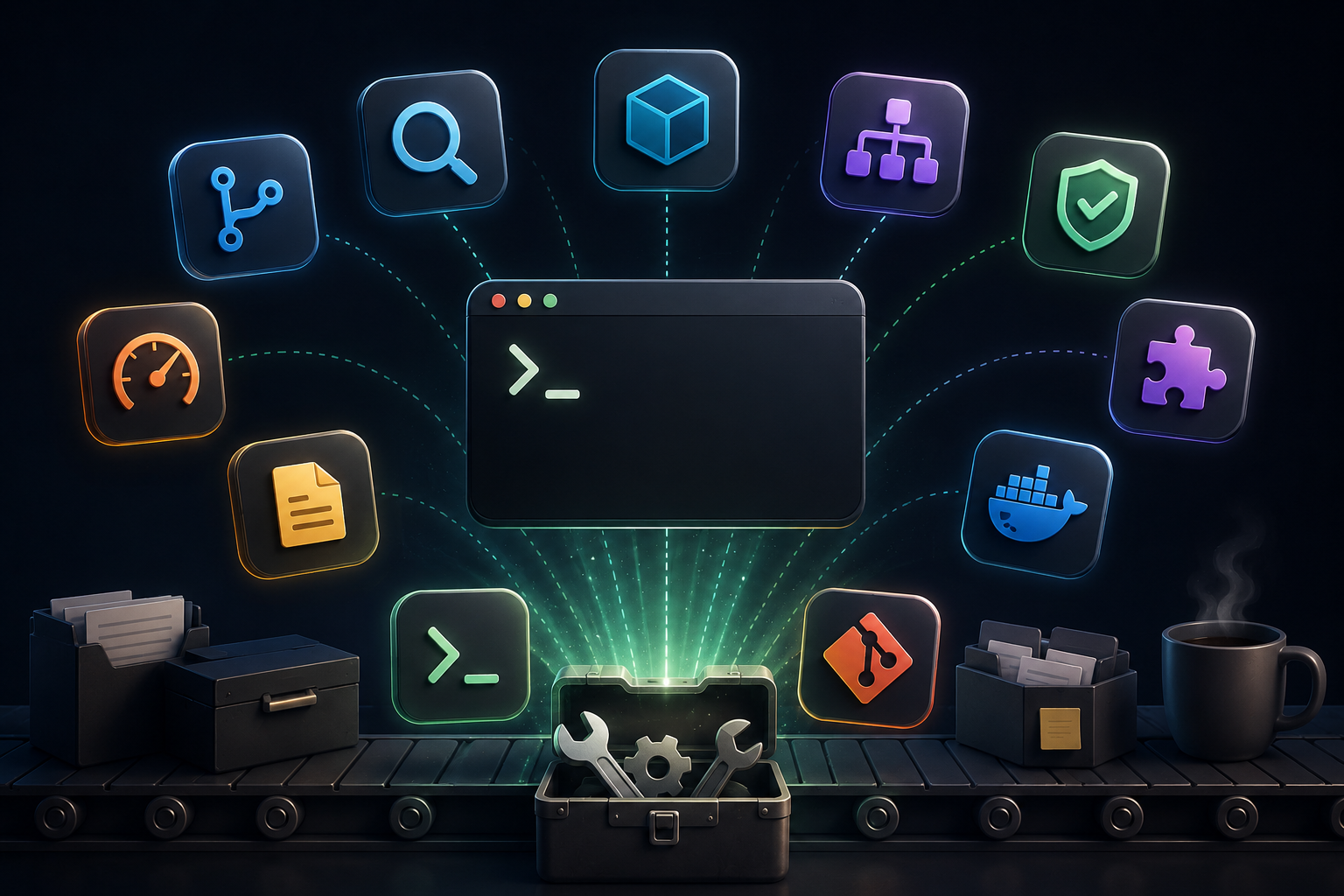
Your editor is where you spend the most time, so it is where keyboard fluency pays off fastest. You do not need to learn a hundred shortcuts; a handful of high-value ones cover most of the day. The single most powerful is usually the command palette — a fuzzy-searchable menu of every command, which means you can run almost anything without remembering its specific shortcut.
Command palette     — run any command by name (your most-used key)
Go to file          — jump to any file by fuzzy name
Go to symbol        — jump to a function or class within a file
Go to definition    — follow code without scrolling
Multi-cursor        — edit many places at once
Move / duplicate line — restructure without selecting
Learn these in order of how often you do the underlying action. Jumping between files happens constantly, so "go to file" earns its place first. Following a symbol to its definition is the next most common navigation. Learn one, use it until it is automatic, then add the next — trying to memorize a cheat sheet all at once almost never sticks.
The window and OS layer
Above the editor sits the operating system, and it is the second-biggest source of mouse reaches: switching apps, arranging windows, launching programs. A good application launcher lets you open or focus any app by typing a few letters, which replaces hunting through a dock or taskbar entirely. A window manager with keyboard shortcuts lets you snap and arrange windows without dragging.
- An app launcher (type-to-open) replaces the dock for switching and launching.
- Window-snapping shortcuts arrange your screen without dragging edges.
- A fast app-switcher keeps you moving between editor, terminal, and browser by keyboard.
- Clipboard history, triggered by a key, removes a surprising amount of friction.
Browser and terminal
The browser is the other place developers live, and it rewards keyboard control as much as the editor does. Switching tabs, focusing the address bar, and finding a link without the mouse all become second nature with a little practice, and some developers add extensions that let them follow any link by typing a short label rather than clicking. The terminal, meanwhile, is keyboard-native by design — and pairs perfectly with the fuzzy-finding tools that turn history search and file selection into a keystroke.
The goal across all of these is a consistent feeling: that moving through your tools is something you do with your hands at rest on the keys, not something that constantly pulls one hand away to chase a pointer around the screen.
Keyboard-first is not about saving seconds. It is about never leaving the thought you were in.
Build the habit gradually
The way keyboard fluency fails is trying to adopt everything at once: printing a giant cheat sheet, taping it to the monitor, and giving up in three days. The way it succeeds is one shortcut at a time. Pick the single action you do most with the mouse, learn its shortcut, and force yourself to use it — even when reaching for the mouse would be faster today — until it stops requiring thought.
Once a shortcut is automatic, it is free forever, and you can add the next one. The progress is invisible day to day and obvious over months: you look up one afternoon and realize your hands have not left the keyboard in an hour, and the work felt smoother for it.
Knowing when to stop
Keyboard-first is a tool, not a religion. There are tasks the mouse simply does better — dragging a node in a diagram, selecting an irregular region, exploring an unfamiliar interface where you do not yet know the shortcuts. Forcing everything onto the keyboard out of principle is its own kind of waste. The aim is to remove the frequent, repetitive mouse reaches that break your flow, not to win an ideological war against pointing devices.
Adopt the shortcuts for the things you do constantly, leave the mouse for the things it genuinely suits, and let the boundary settle wherever it makes your particular work feel smoothest. The measure of success is not how rarely you touch the mouse, but how rarely your attention gets yanked out of the task — and a handful of well-worn shortcuts is usually all it takes.