10 CLI Tools Worth Adding to Your Workflow
The classic Unix tools are timeless, but a wave of modern command-line replacements are faster, friendlier, and easier to read. A small set of them quietly upgrades your terminal for years.
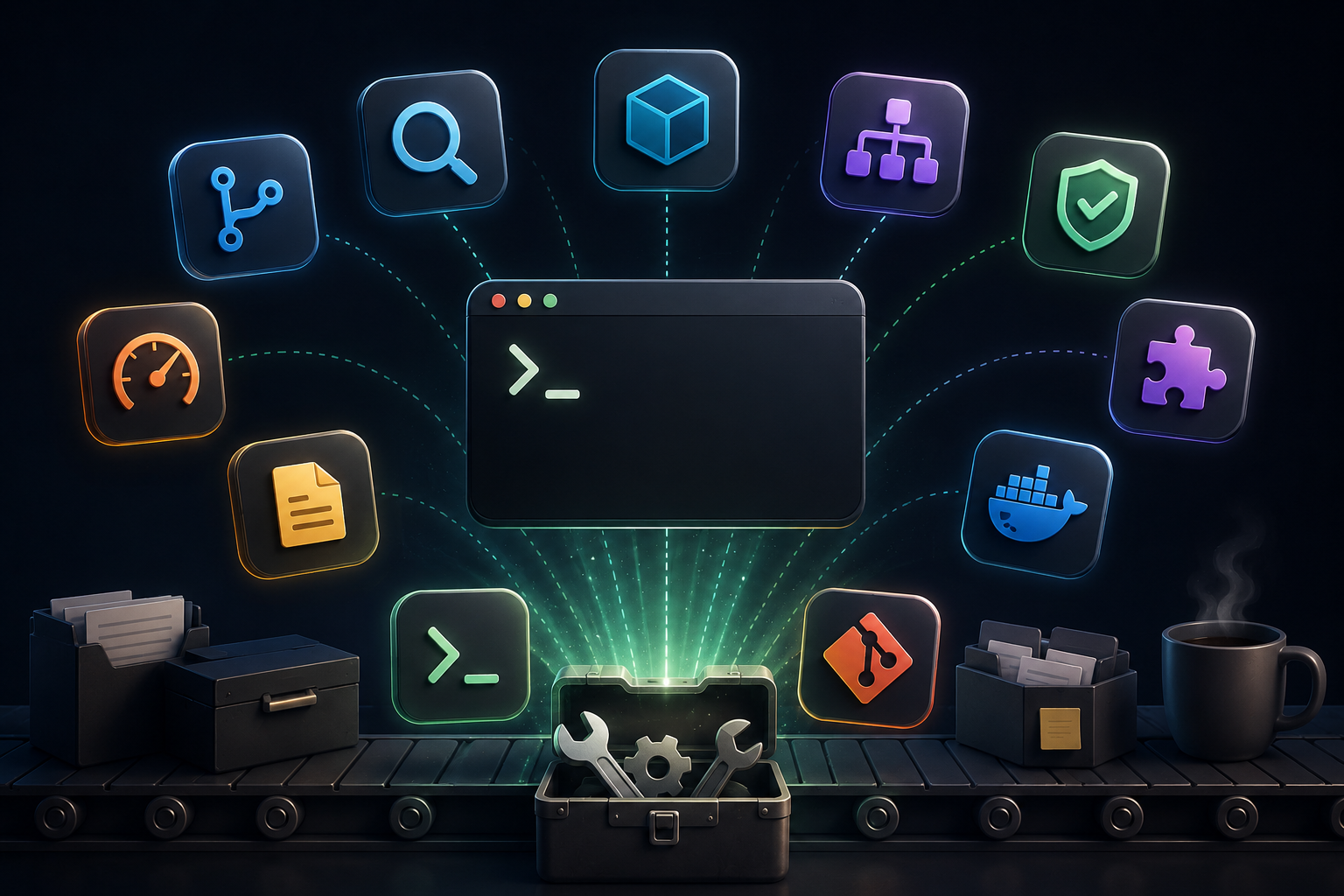
The terminal is the one environment a developer never really leaves, which makes it the highest-leverage place to invest in better tools. The classics — grep, find, cat, ls — are everywhere and will never let you down, but a generation of modern replacements has appeared that are dramatically faster, more readable, and kinder to use. Adopting even a handful pays off every single day. Here are ten worth knowing.
Why bother upgrading the terminal
Small frictions in the terminal compound because you hit them constantly. A search that takes three seconds instead of thirty, output you can actually read at a glance, a directory jump that takes one word instead of three cd commands — none of these is dramatic alone, but you perform them hundreds of times a week. Sharpening the tools you use most is the cheapest productivity win available, and it lasts as long as your career.
None of these tools require abandoning what you know. They sit alongside the classics, often as near drop-in replacements, and you can adopt them one at a time as the old friction annoys you enough to fix it.
Faster search: ripgrep and fd
If you adopt only two tools, make them these. ripgrep (rg) searches file contents and is astonishingly fast, in part because it respects your .gitignore by default and skips the noise. fd does the same for finding files by name, with a syntax far gentler than find's. Together they cover the two searches you run most, and both feel instant even on large repositories.
rg "useEffect" --type js        # find all useEffect in JS files
rg -l "TODO"                    # just the filenames that contain TODO
fd ".test.jsquot;                  # find files matching a pattern
fd config --type f --hidden     # include hidden files in the search
The speed is not just a number — it changes how you work. When search is instant, you search more freely, exploring a codebase by querying it rather than by clicking through folders. The tool becomes a way of thinking about the project, not just a command you run.
Readable output: bat and eza
bat is cat with syntax highlighting, line numbers, and git markers, so reading a file in the terminal feels like reading it in an editor. eza is a modern ls with colors, icons, and a clean tree view, turning a wall of filenames into something you can actually scan. Neither changes what you do; both make what you see far easier to take in.
- bat highlights code and shows git changes inline — far nicer than raw cat for reading source.
- eza --tree gives a clear directory tree without reaching for a separate tool.
- Both use color meaningfully, so structure and status register at a glance rather than after reading.
Moving around: zoxide and fzf
Navigation is where a lot of quiet time goes. zoxide learns the directories you visit and lets you jump to any of them by a fragment of its name — type a few letters and you are there, no matter how deep the path. fzf is a fuzzy finder that plugs into almost everything: command history, file selection, git branches, process lists. Wired together, they make moving around the system feel less like typing paths and more like naming what you want.
z proj            # jump to the most-used dir matching "proj"
z dev kit         # match on multiple fragments of the path

# fzf shines piped into other commands
git branch | fzf  # fuzzy-pick a branch
kill -9 $(ps aux | fzf | awk '{print $2}')  # pick a process to kill
fzf in particular has a way of disappearing into your muscle memory. Once Ctrl-R fuzzy-searches your history and Ctrl-T fuzzy-finds files, going back to scrolling through history line by line feels archaic — and you stop memorizing exact paths because finding them is faster than remembering them.
The terminal is where you live. Sharpening the tools you touch a hundred times a day is the cheapest upgrade there is.
Understanding systems: jq, delta, and a better top
Some tools earn their place by making the opaque legible. jq slices and reshapes JSON from the command line, which turns wrestling with an API response into a one-line query. delta renders git diffs with syntax highlighting and side-by-side views, making code review in the terminal genuinely pleasant. And a modern process monitor like btop or htop turns the cryptic numbers of top into a live, navigable dashboard of what your machine is doing.
curl -s api.example.com/users | jq '.[] | .name'  # extract just names
cat package.json | jq '.dependencies'              # pull one field out
jq deserves singling out: so much of modern development is JSON flowing between services, and being able to query and reshape it without writing a script removes a constant small tax. It is awkward for the first hour and indispensable forever after.
Adopting them without overload
The mistake is installing all ten at once, aliasing everything, and remembering none of it a week later. Adopt one tool at a time, triggered by a real annoyance: the next time a search is slow, install ripgrep; the next time a JSON response is unreadable, learn jq. Let each tool earn its place by solving a problem you actually felt, and it will stick because you reached for it, not because a list told you to.
Keep your configuration portable, too — a dotfiles repository that travels with you means a new machine is productive in minutes, with all your sharpened tools already in place. The setup compounds: each tool you internalize makes the terminal a little more like an extension of your hands and a little less like a place you have to fight.
Where to start
Install ripgrep and fd today; they are the two with the highest return and the gentlest learning curve. Use them for a week until reaching for them is automatic, then add the next one when something else annoys you enough to fix it. The terminal you end up with a year from now will feel faster and quieter — built not from one big change but from a dozen small ones you barely noticed making.